
Enterprise access points often advertise theoretical support for 250 or more connections. The realistic answer to how many devices can one Wi-Fi access point support is between 30 and 50 active users.
Manufacturer spec sheets come from lab tests with idle devices. In a working office, Wi-Fi is a shared medium. Every laptop, phone, and smart device competes for the same radio airtime, and airtime is the real ceiling.
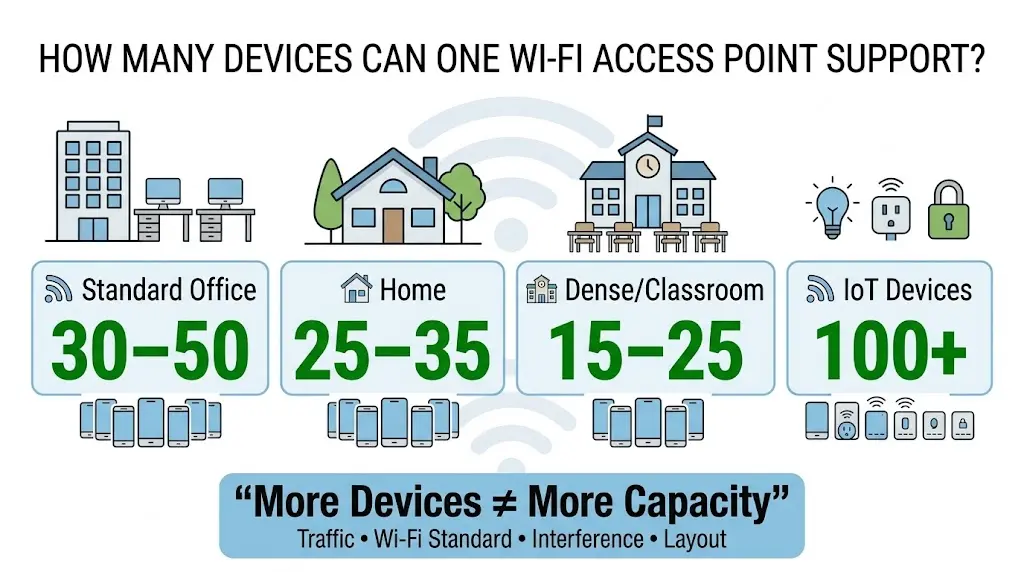
The Reality Behind the Spec Sheet
Capacity has nothing to do with how many IP addresses your router can hand out. It comes down to how much data those devices are actually pushing at the same time.
| Environment / Use Case | Realistic Active Devices per AP | Why |
| Dense Commercial / Classrooms | 15–25 devices | High-density usage like video calls and bulk transfers saturates the unit quickly. |
| Home Wi-Fi (Streaming, Smart Home) | 25–35 devices | Moderate traffic mixed with mostly idle smart home devices. |
| Standard Office Workspaces | 30–50 devices | Intermittent email, browsing, and cloud apps. This is the range most of the access points we install for GTA offices are sized around. |
| IoT-Only (Sensors, Scanners) | 100+ devices | Low-data devices barely consume any airtime. |
What Actually Sets the Limit
Four things decide where your real number lands, and none of them appear on the box:
- Airtime availability. Wi-Fi devices take turns transmitting. One slow or distant device holds the channel longer per packet, which drags down the speed for everyone else on that access point.
- Application mix. Ten staff on 1080p video calls burn far more airtime than fifty people checking email. Headcount is the wrong number to plan around, which is why the mix matters most when planning a network before a fit-out.
- Wi-Fi standards. Wi-Fi 6 and 6E hardware use OFDMA, which lets several devices share a single transmission instead of queueing one behind the other. In a busy room, that alone can raise real-world capacity substantially.
- Physical layout. Thick walls, long distances, and interference from neighbouring networks push devices onto slower transmission rates. Slower rates eat more airtime per device. In older Toronto and Hamilton buildings, this is usually the hidden culprit, and the fix is a wired drop closer to the users rather than a bigger antenna, which is the network cabling we run across Ontario.
When to Add More Access Points
If your network is struggling, buying a “stronger” single router almost never solves it. Watch for two symptoms. Video calls freeze once several people join. Devices show full signal bars but pages still load slowly.
That second one is the classic saturation signature. Full bars means the signal is fine. The airtime is what ran out, and no amount of extra transmit power fixes that.
The proper fix is capacity planning: a second or third access point, each handling a smaller group of devices, running on separate non-overlapping channels. Each unit needs its own wired drop back to the switch, so the cabling plan and the Wi-Fi plan get worked out together. We covered the sizing side of this in our guide to how many units an office floor needs.
Not sure whether your problem is coverage or capacity? We’ll survey the space, measure the real-world throughput at each desk, and tell you how many units it actually takes. Book a free on-site Wi-Fi assessment and we’ll map it before you buy any hardware.
If you’d like to hear how this has gone for other GTA businesses, our Google reviews are a good place to start.